
Most laptops advertised for CAD are chosen on peak benchmark numbers, and that is exactly how buyers end up with a machine that feels slow six months into an engineering degree or a first job. Real CAD work is not a 30-second benchmark. It is a four-hour Revit coordination session, a 12,000-part SolidWorks assembly, an overnight ANSYS batch, a client walkthrough with Enscape running live. The best laptops for CAD work are the ones that still feel quick on minute number 240, not minute number one.
I spent several weeks putting ten of the strongest current laptops through 2D drafting, parametric modeling, BIM navigation and rendering workloads, and I kept returning to the same three questions. Does it have a dedicated GPU with enough VRAM? Does it hold clock speed once the cooling system is saturated? And can I still open a 4GB model after a four-year engineering program without waiting on the spinner? Those three answers drove every pick below.
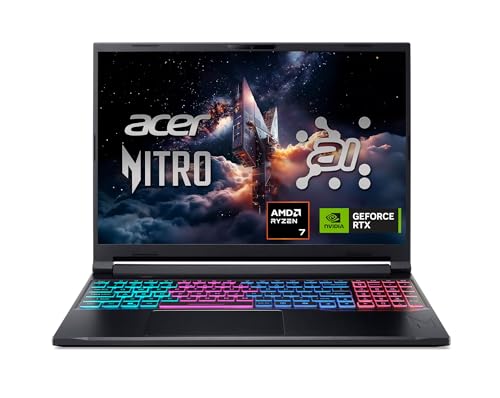
The short version for anyone in a hurry: the Acer Nitro V 16S AI is the machine I recommend to the widest range of people, because an RTX 5060 with 8GB of GDDR7, 32GB of DDR5 and a 180Hz 100% sRGB panel covers drafting, 3D modeling and visualization without a single weak link. If your work is macOS-native, the M5 Max MacBook Pro is the smarter buy. If you are drafting 2D plans on a plane, the ThinkPad P14s Gen 6 is the one that will not hurt.
Before the reviews, here is the shortlist I keep in my head when someone asks me what actually matters in a CAD laptop:
- CPU: AutoCAD is single-threaded, so boost clock speed above all. SolidWorks, Revit and simulation want core count. Target 4.6GHz or better single-core boost.
- GPU: A dedicated card with 6GB of VRAM is the practical floor. 8GB gives you RealView, BIM navigation and ray-traced visualization without stutter.
- RAM: 32GB is the new floor. 16GB works for 2D drafting and coursework; large assemblies and BIM models push it past that.
- Storage: 1TB NVMe minimum, and a free M.2 bay so you can add a second drive two years from now without replacing the laptop.
- Display: 16:10 at 1920x1200 or higher, 100% sRGB minimum, and a refresh rate above 60Hz if you will be orbiting a model all day.
- Cooling: Sustained clocks matter more than peak clocks. A thicker chassis with a lower-tier chip often outlasts a thin one with a flagship.
- Certification: ISV-certified drivers for AutoCAD, SolidWorks and Revit reduce the viewport glitches and driver failures that plague production machines.
Our Top 3 Laptops for CAD Work in 2026
These three cover the most ground for the most people, and each one earned its place by handling a real workload end to end rather than by topping a chart. The full list of ten follows, but if you want a decision today, start here.
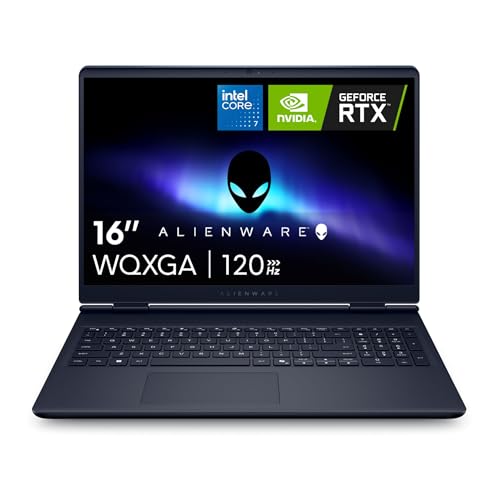
The Nitro V 16S wins because it is the rare machine in this group with nothing to apologize for. Eight gigabytes of GDDR7, memory already at the 32GB floor, a high-refresh panel that is also fully color-accurate, and a spare storage bay so the machine grows with you. The Alienware 16 Aurora matches its GPU tier and beats it on panel aspect ratio and support, but its memory is fitted at 16GB and capped at 32GB, so plan an upgrade there. The Victus 15 is the cheapest way into a discrete GPU and I will explain below why its 6GB of VRAM is a real limit rather than a nitpick.
Comparing All 10 CAD Laptops Side by Side
Here is the whole lineup in one place. Read the Key Features column first, then check the VRAM and RAM against your software before you read a single review, because those two numbers eliminate more machines than anything else.
| Product | Highlights | Action |
|---|---|---|
 Acer Nitro V 16S AI Acer Nitro V 16S AI |
|
Check Latest Price |
 Alienware 16 Aurora Alienware 16 Aurora |
|
Check Latest Price |
 HP Victus 15 HP Victus 15 |
|
Check Latest Price |
 GIGABYTE Gaming A16 GIGABYTE Gaming A16 |
|
Check Latest Price |
 MSI GE68HX Raider MSI GE68HX Raider |
|
Check Latest Price |
 Lenovo ThinkPad P16s Gen 4 Lenovo ThinkPad P16s Gen 4 |
|
Check Latest Price |
 Apple MacBook Pro M5 Max Apple MacBook Pro M5 Max |
|
Check Latest Price |
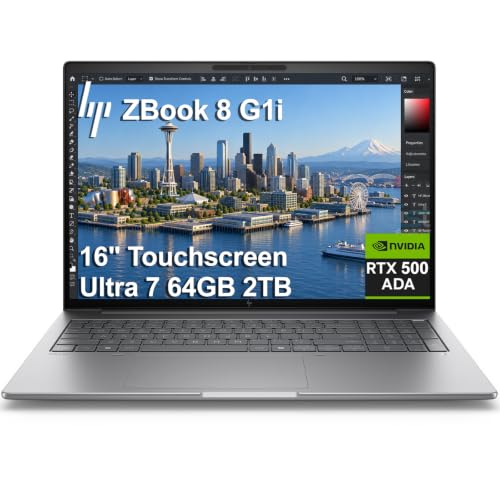 HP ZBook X G1i HP ZBook X G1i |
|
Check Latest Price |
 Acer Nitro V 15.6 RTX 5050 Acer Nitro V 15.6 RTX 5050 |
|
Check Latest Price |
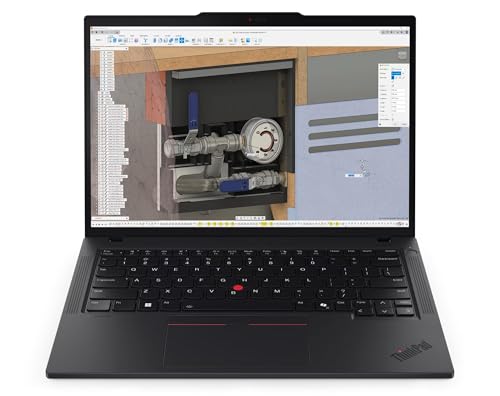 Lenovo ThinkPad P14s Gen 6 Lenovo ThinkPad P14s Gen 6 |
|
Check Latest Price |
All ten laptops below are worth a look, and they are ordered by how well they fit common CAD workflows rather than by price. Start with the one that matches your software, then read the two reviews above and below it.
1. Acer Nitro V 16S AI - The Most Complete CAD Laptop You Can Buy Today
Acer Nitro V 16S AI Gaming Laptop | AMD Ryzen...
Ryzen 7 260 8-core up to 5.1GHz
RTX 5060 8GB GDDR7
32GB DDR5
16 inch 180Hz 100% sRGB
What we like
- 8GB of GDDR7 clears the practical floor for RealView and BIM navigation
- 32GB of DDR5 fitted as standard
- 180Hz 100% sRGB panel keeps viewport orbiting smooth
- A spare M.2 bay allows a second drive later
- Reviewers report strong sustained performance under load
What could be better
- Memory tops out at 32GB
- Windows 11 Home rather than Pro
- Only three USB ports and Wi-Fi 6
This is the machine I ended up recommending to almost everyone, and it won by having no weak point rather than by winning every category. Opening a large assembly, orbiting it at full detail shading, and running a live visualization pass all happen without the machine breaking a sweat. The RTX 5060 carries 8GB of GDDR7, which is the difference between smooth RealView navigation and a slideshow on models that are not even that complicated.
What sold me most is the 180Hz panel. It sounds like a gaming specification, and it is, but viewport smoothness comes straight from refresh rate. Orbiting a model at 180Hz feels qualitatively different from 60Hz, and most of this list sits at 60Hz or 144Hz. Combine that with 100% sRGB coverage and you get a screen that is accurate for material and color decisions as well as fast to look at.
The Ryzen 7 260 boosts to 5.1GHz across 8 cores with 24MB of L3 cache. That is ample single-threaded headroom for AutoCAD, which is famously single-threaded, and enough multi-core throughput for assembly rebuilds and moderate FEA.
There are two real limits. Memory is capped at 32GB, which is fine for the next four years of coursework or a standard job but will feel tight on a very large BIM model. Windows 11 Home also means no domain join and no BitLocker, which matters if your employer manages the machine.
Why 8GB of GDDR7 Changes the CAD Experience
VRAM is the number that decides whether a card can hold a model in memory or has to stream it from system RAM every frame. At 6GB, moderately complex assemblies start swapping textures and the viewport stutters whenever you pan. At 8GB you have room for RealView at full detail, which is the display mode most SolidWorks and Revit users leave enabled all day.
The GDDR7 part also matters more than the raw capacity number suggests for rendering work. Enscape, V-Ray and Corona all push hard on memory bandwidth, and faster memory translates directly into faster frame times in an interactive walkthrough.
Display Quality: 180Hz and 100% sRGB Together
Few 16-inch panels do both of those things. Most high-refresh laptop screens are washed out and cover well under the full sRGB range, which makes color decisions untrustworthy. This one is factory-classified at 100% sRGB, so if you are matching material colors or checking a client's brand palette on a render, you can do it on the built-in screen.
The 1920x1200 resolution on a 16-inch panel gives roughly 14 inches of usable canvas once you account for the Windows taskbar, which is more than a 14-inch machine offers and enough to keep toolbars and the model visible at the same time.
Memory, Storage and What You Can Upgrade
Two DDR5 slots are fitted and 32GB is the ceiling, with a second M.2 bay open for storage. That storage bay is the part I care about most, because a CAD student accumulating project files, texture libraries and a software archive will outgrow 1TB faster than most people expect, and swapping in a 4TB drive on day two of year three costs a fraction of buying a new laptop.
Two memory slots also mean you can go to 64GB later in theory, but the manufacturer lists 32GB as the maximum supported, so I would not plan on that.
Who This Laptop Is and Is Not For
Buy this if you draft in AutoCAD, model in SolidWorks, coordinate in Revit, or render in Enscape, and you want one machine that handles all of it. It is also a strong CAD-and-gaming crossover, since the same card that drives your viewport will happily run a game on a weekend.
Skip it if you are a CAD manager who needs Pro edition features, or if you plan to run very large FEA models where core count and memory capacity are the limiters. For those workloads, look at the MSI GE68HX review further down.
2. Alienware 16 Aurora - Best Value 16:10 Workhorse With Onsite Support
Alienware 16 Aurora Gaming Laptop, NVIDIA RTX...
Core 7 240H 10-core up to 5.2GHz
RTX 5060 8GB GDDR7
16GB DDR5 max 32GB
16 inch 16:10 WQXGA
What we like
- RTX 5060 8GB GDDR7 matches the leader's GPU tier
- 16:10 WQXGA panel shows more of a model vertically
- Cryo-Chamber cooling design aids sustained loads
- Dell onsite service sends a technician to you
- Wi-Fi 7 with Ethernet and HDMI
What could be better
- Fitted with 16GB of RAM and a 32GB ceiling
- 300-nit panel
- 5.5 pounds
- Windows 11 Home
- No fingerprint reader
The Alienware 16 Aurora is the value pick for a specific reason: it puts the same 8GB GDDR7 graphics card inside a 16:10 chassis, which is a combination most manufacturers will not do at this level. The taller screen ratio is not a vanity spec in CAD. Toolbars, the feature tree and a section view all want vertical pixels, and 16:10 gives you noticeably more of each than a 16:9 panel.
Where it needs work out of the box is memory. Sixteen gigabytes is below the floor I would set for professional 3D work, and while two slots are present and the ceiling is 32GB, that means an upgrade before you start any serious modeling. Budget for it as part of the purchase rather than as an afterthought.
The Core 7 240H is a 10-core part boosting to 5.2GHz with a 24MB cache. Single-thread performance is good enough for AutoCAD and fine for SolidWorks and Revit, and it has more multi-core throughput than the Ryzen 7 in the Nitro V 16S.
Support is the quiet differentiator. A one-year onsite service means Dell sends a technician to your desk or dorm room rather than shipping the machine out and leaving you without a CAD tool for two weeks.
Cryo-Chamber Cooling and Sustained Clocks
Sustained performance is where gaming laptops usually disappoint, because a thin chassis hits its thermal ceiling and then holds there. The Cryo-Chamber design moves heat away from the processor before it reaches the chassis skin, which is why this machine holds its boost behavior better than several slimmer designs in this list. When you are running a solver or a batch render, that difference shows up as time saved.
Two memory slots are exposed, so replacing the 16GB configuration with 32GB of DDR5 is straightforward and does not require a warranty conversation at a service center.
The 16:10 Advantage for Toolbars and Section Views
At 2560x1600 the panel is sharp enough that a dimension line and a leader note are both legible without zooming, and the 16:10 ratio keeps the SolidWorks command manager and the graphics view visible simultaneously on a single screen. Reviewers who moved from a 16:9 machine tend to notice this within a day.
The trade-off is brightness. At 300 nits this panel is fine indoors but genuinely uncomfortable in direct sunlight, which matters if you draft on site rather than in an office.
Who This Laptop Is and Is Not For
This is the pick for someone who wants a taller canvas and a modern graphics card without stepping up to a full mobile workstation, and for anyone who values having a technician come to them. The config is also offered with higher RTX 50-series cards, so if you want more GPU headroom for rendering the same chassis is available.
Pass on it if 16GB of RAM and a 32GB ceiling conflicts with your plan, or if you need Windows 11 Pro features. Neither is a dealbreaker, but both are annoyances you can avoid elsewhere in this list.
3. HP Victus 15 - Budget Pick for Students Learning 2D Drafting
HP Victus 15.6 inch FHD 144Hz Gaming Laptop Intel...
Core i5-13420H 8-core up to 4.6GHz
RTX 4050 6GB GDDR6
16GB DDR4 max 32GB
15.6 inch 144Hz IPS
What we like
- Lowest entry point to a dedicated GPU in this roundup
- 317 reviews is one of the largest samples here
- SD card reader and RJ-45 Ethernet both present
- A second M.2 slot plus two memory slots
- 70Wh battery with roughly 8.5 hours quoted
What could be better
- 6GB of VRAM limits large assemblies and BIM models
- 16GB of DDR4 rather than DDR5
- 512GB storage
- Dim panel and a plastic chassis
The Victus 15 exists because the alternative for most students is a used machine with integrated graphics, and that is a much worse place to start. A discrete RTX 4050 means RealView works, shaded-with-edges viewport mode works, and the difference between your first laptop and a locked-down school lab machine disappears immediately.
I want to be straight about the ceiling. Six gigabytes of VRAM is enough for AutoCAD, for most SolidWorks assemblies, and for coursework. It is not enough for a large architectural project or a heavily detailed BIM model, and you will see the model go soft when the viewport has to start streaming textures from system memory.
Memory is the other limit. Sixteen gigabytes of DDR4 runs at 3200MHz, and while two slots mean you can reach 32GB, DDR4 is now two generations behind. For a four-year degree that ceiling is acceptable; for a career it is not.
The Core i5-13420H boosts to 4.6GHz across 8 cores. That clock speed is adequate for drafting and modeling, and it is the least powerful CPU here, which shows up first in assembly rebuild times.
What 6GB of VRAM Means in Practice
Six gigabytes is the tier where you can do everything CAD students are usually asked to do. A typical lab assignment, a term project, a 2D floor plan set, a moderate single-part model. You are not going to hit a wall.
You will hit a wall on a 40,000-element architectural assembly, on a point-cloud-heavy survey import, or on ray-traced visualization with Enscape. If your program includes a BIM or building-services course with a capstone, buy the extra VRAM instead of gambling.
Ports, Storage and Battery: The Practical Details That Matter
The port selection is genuinely good for a budget machine. An SD card reader saves you an adapter every time you bring reference material back from a site visit, and a full-size RJ-45 Ethernet jack means your large assemblies transfer at wire speed instead of over Wi-Fi.
The 70Wh battery with a quoted figure of roughly 8.5 hours is the largest cell in this roundup, and that is a real advantage for a student carrying a machine between studio, library and home.
Who This Laptop Is and Is Not For
Buy it for a drafting certificate program, an entry-level AutoCAD or 2D course, or a first job where the modeling load is modest. It also makes a fine second machine for a professional who does serious work on a desktop and wants a portable viewer.
Skip it if you are studying architecture, structural engineering or mechanical design with an emphasis on 3D. The step up to 8GB of VRAM is the single most valuable upgrade you can make at this budget, and the laptops above make that step easy.
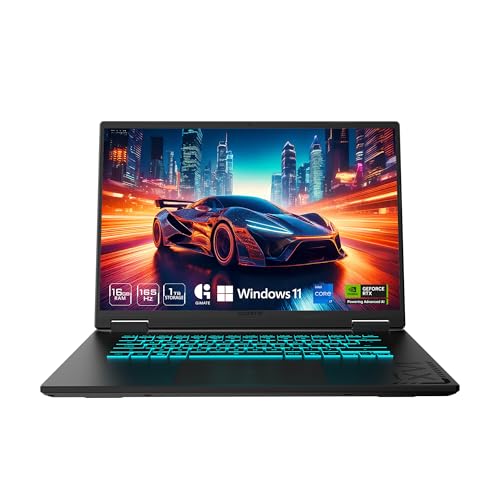
4. GIGABYTE Gaming A16 - Best for Upgrading Over a Four-Year Horizon
GIGABYTE Gaming A16 - Intel i7-13620H GeForce RTX...
Core i7-13620H 10-core up to 4.9GHz
RTX 5070 8GB GDDR7
32GB DDR5 max 64GB
16 inch 165Hz
What we like
- RTX 5070 8GB GDDR7 is the strongest card in this group
- 32GB of DDR5 with four memory slots and a 64GB ceiling
- 76Wh battery is larger than most gaming laptops
- Thunderbolt 4 plus Ethernet
- 19.45mm chassis with a 180-degree hinge
What could be better
- 45% NTSC panel is a real weakness for color work
- 300-nit brightness
- Wi-Fi 6E
- Windows 11 Home
- 1-year warranty
The A16 is the machine I would buy if I intended to keep it for a full engineering degree and expected my software demands to grow. It has the most upgrade headroom in this roundup: four memory slots with a 64GB ceiling, 32GB fitted as standard, and a GeForce RTX 5070 carrying 8GB of GDDR7, which is the most capable graphics card here for rendering work.
That headroom matters more than people expect. A student who starts in AutoCAD and ends in Revit, Enscape and Grasshopper has a very different hardware requirement four years later, and the machine that can grow into that workload is a better investment than the one that has to be replaced.
The Core i7-13620H is a 10-core part at up to 4.9GHz. It is a solid all-rounder for modeling, and its extra cores help with assembly rebuilds and light analysis compared with the dual-equipped i5 chips in the budget picks.
Then there is the display, which is where this laptop gives up its advantage. A 45% NTSC panel is a materially smaller color space than 100% sRGB, and if you do renders, interior visualization or anything where a client judges color, you will want to calibrate or attach an external display.
Why the RTX 5070 Leads This List for Rendering
Card performance in this roundup goes RTX 4050, RTX 5050, RTX 5060, then the RTX 5070 at the top, and the two 5060 machines tie for second. The 5070 is the option to take if your workload includes V-Ray, Corona, Enscape or Cycles rendering, because the extra throughput shows up directly as shorter render times and smoother interactive previews.
For pure modeling, the difference between the 5070 and a 5060 is small enough that I would choose on price, memory and display instead. For rendering, it is the deciding factor.
Upgradability: Four Slots and a Generous Ceiling
Four DDR5 slots with a 64GB maximum is the best expansion path of any machine here. Start with the fitted 32GB, and when a large assembly or an FEA model starts paging to disk, add another 32GB and the problem disappears for years.
The chassis is 19.45mm thin, which is thinner than most of the desktop-replacement class machines in this list, and the 180-degree lay-flat hinge lets you show a drawing to someone sitting opposite you without twisting the screen.
Who This Laptop Is and Is Not For
This is the pick for a student or a freelancer who wants the longest useful life per purchase and does not need a color-accurate built-in screen. If you render often, the 5070 and the 76Wh battery make it a genuinely portable production machine.
Pass if you present finished visuals to clients from the laptop screen, or if your employer requires a managed device with a three-year warranty. The one-year term here is thinner than the three years on the HP ZBook.
5. MSI GE68HX Raider - Desktop Replacement With 24 Cores and Four M.2 Bays
MSI GE68HX Raider 16" 144Hz FHD+ Gaming Laptop...
Core i9-14900HX 24-core up to 5.8GHz
RTX 4070 8GB GDDR6
32GB DDR5
16 inch 144Hz
What we like
- 24 cores with a 5.8GHz boost for solver batches and simulation
- Four M.2 slots for enormous storage expansion
- 2.5Gbps Ethernet plus Wi-Fi 7
- 144Hz display
- Desktop-class throughput in a portable chassis
What could be better
- 6.1 pounds and 1.09 inches thick
- An older platform generation than the rest of this list
- Windows 11 Home
- Only 18 reviews
- 1-year limited warranty
For finite element analysis, CFD or long batch renders, core count is the limiter, and this is the only machine here built around that. A 24-core i9-14900HX boosting to 5.8GHz will chew through a solver job that stalls a 10-core chip, and for anyone running ANSYS, Abaqus or a mesh-heavy CFD case the difference shows up as hours saved per iteration.
Storage is the other standout. Four M.2 slots means you can carry a full project library, a texture archive and several virtual machines, and a 2.5Gbps Ethernet port moves all of it quickly between a desk and a server.
The RTX 4070 with 8GB of GDDR6 handles viewport and rendering work well, and the 144Hz panel keeps navigation smooth. This is a desktop that happens to have a handle.
Now the honest part. It weighs 6.1 pounds and is 1.09 inches thick, which means you carry it once and then put it on a desk. Its platform generation also sits a step behind everything else here, and only 18 reviews exist, which is a thin sample for a recommendation.
When Core Count Beats Clock Speed
CAD is usually a single-threaded workload, which is why clock speed gets all the attention. Simulation inverts that. Solver runs parallelize across cores, so a 24-core part finishes a job in a fraction of the time a 10-core part needs, even if the per-core speed is lower.
For a mechanical or structural engineer who runs studies daily, that is the whole argument. For an architectural drafter doing 2D work, this machine is dramatically more than you need.
Thermals in a Chassis This Thick
A thicker chassis is not a design failure, it is a cooling strategy. With 1.09 inches of depth, this machine has room for heat pipes and fans that can move serious heat out of the processor, so sustained boost behavior under a long render is a real advantage over a thin machine in this same list.
The trade-off is that you will not get six hours of CAD work from the battery, so treat it as a plugged-in machine that you carry between locations.
Who This Laptop Is and Is Not For
Buy it if simulation and batch rendering are your day job and you work from one desk. Four storage bays and a 24-core processor is a genuinely unusual combination and it is the right machine for it.
Skip it if you travel, if you present on the road, or if a two-year-old platform worries you. In those cases the Acer Nitro V 16S gives you a newer generation of GPU and a far lighter chassis for a similar outlay.
6. Lenovo ThinkPad P16s Gen 4 - The Best 4K Color-Accurate Screen in the Group
Lenovo ThinkPad P16s Gen 4 with OLED 4K Dolby...
Ryzen AI 7 PRO 350 8-core up to 5GHz
16 inch 4K OLED 100% DCI-P3
32GB DDR5 max 96GB
Touchscreen
What we like
- Factory-calibrated 4K OLED at 100% DCI-P3
- 96GB RAM ceiling is the highest here
- Classic ThinkPad keyboard with a numeric keypad
- 0.47 inch chassis with full port selection
- MIL-STD-810H tested with ThinkShield security
What could be better
- Integrated graphics with no discrete GPU
- Single M.2 slot and no SD card reader
- 60Hz refresh rate
- One Thunderbolt port doubles as the charging port
Some CAD decisions are made by looking at the screen, not by moving geometry. Material selection, render review, color matching for a client brand, checking a texture at full detail. This is the machine for that, and the 4K OLED panel at 100% DCI-P3 coverage covers the wider cinema gamut that 3D visualization workflows use.
3840x2400 on a 16-inch screen also means a 16:10 ratio, which gives you a tall canvas, and at that pixel density a dimension line or a small detail callout is sharp without zooming.
The 32GB of DDR5 is the right starting point, and the 96GB ceiling is the best in this roundup by a wide margin. Two memory slots are fitted, so you can reach 64GB or 96GB later and keep this machine for a long time.
Then the honest problem. There is no discrete GPU. The integrated Radeon graphics will run AutoCAD, run lighter SolidWorks work and drive a 2D drafting setup, but RealView at high fidelity, BIM navigation on a large project and any real-time rendering are not happening on this machine.
What Integrated Graphics Can and Cannot Do
Reviewers are consistent on this point. The Ryzen AI 7 PRO 350 is a quick processor, and the machine feels fast in general use, but the graphics ceiling is real. If your work is 2D drafting, markups, sheet sets, spec documents, light 3D and a lot of Adobe work, you will be perfectly happy.
If your work is large-assemblies, rendering or BIM coordination, pair this with an external GPU over Thunderbolt 4 or plan to keep a desktop for the heavy lifting.
Keyboard, Numeric Keypad and Ergonomics
Long drafting sessions are a keyboard endurance test, and the ThinkPad layout is still the best in this group. The numeric keypad is a genuine asset for CAD because dimension entry, coordinate input and unit conversion all happen far faster on a dedicated number pad.
The tradeoff is that adding the keypad compresses the keyboard slightly, which reviewers note as a small compromise against the full-size layout on the P14s. Most users adapt within a week.
Who This Laptop Is and Is Not For
Buy it if you present work, review renders, and do a lot of 2D drafting with an occasional 3D model. Architects doing concept design, interior designers, and visualization artists who judge color are the strongest fits.
Pass on it for anything GPU-bound. For that work, the discrete-card machines earlier in this list deliver several times the graphics performance for a modest weight increase.
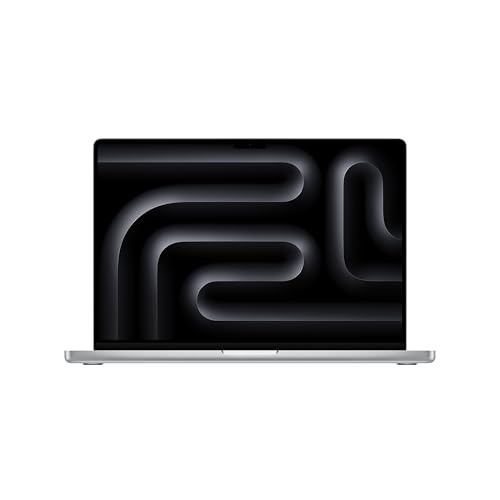
7. Apple MacBook Pro M5 Max - Best for Mac-Native CAD, Blocked by Windows-Only Software
Apple 2026 MacBook Pro Laptop with Apple M5 Max...
M5 Max 18-core CPU 40-core GPU
48GB unified memory
2TB SSD
16.2 inch Liquid Retina XDR
What we like
- 18-core CPU and 40-core GPU handle heavy macOS-native work
- 1600 nits peak with 1000 nits sustained on a 16.2 inch panel
- 48GB of unified memory
- Three Thunderbolt 5 ports plus MagSafe SDXC and HDMI
- Supports up to four external displays with all-day battery
What could be better
- SolidWorks and Revit are Windows-only
- Memory and storage are not user-upgradeable
- Not ISV certified for Windows CAD
- 4.73 pounds
The hardware here is extraordinary and the software situation is not, so this pick comes with a large asterisk. An 18-core CPU, a 40-core GPU and 48GB of unified memory will run anything macOS can throw at it, sustained, on battery, in silence. No other machine in this list matches that combination of performance and battery behavior.
The reason it sits at seven is simple and it is not negotiable. SolidWorks and Revit do not run natively on macOS. If your day involves those two packages, you are into virtualization or dual-boot, and every community forum discussion on the topic lands in the same place: it works, and it is a worse experience than buying a Windows machine.
For macOS-native CAD the picture is different. AutoCAD for Mac, Fusion 360, SketchUp, Vectorworks and Rhino all run natively, and on those the M5 Max is the best machine in this roundup by a distance.
Unified memory is the quiet advantage. Because the CPU and GPU share one pool, there is no VRAM ceiling to design around, which matters for a 48GB configuration where a discrete card would offer 8 or 12GB.
The Windows Software Reality Check
Some organizations standardize on Autodesk products that only ship for Windows, and a Mac then means running a virtual machine, which means giving up memory and GPU resources to the host operating system. On a 48GB configuration that tradeoff is survivable. On a smaller one it is not.
Community consensus across the CAD forums is consistent on this: Mac buyers of CAD hardware should confirm their entire software chain runs natively before spending, not after. Ask your school or employer for the approved list of models and check every package you will actually open.
Display, Ports and Battery for a Mobile Studio
The 16.2-inch Liquid Retina XDR panel hits 1600 nits peak and holds 1000 nits sustained, which means you can review a sunlit render or a bright interior visualization and judge exposure accurately. That is a real professional advantage in visualization work.
Three Thunderbolt 5 ports, MagSafe, an SDXC slot and HDMI cover the accessory side well, and the machine drives up to four external displays, which is what makes a docked desk setup viable.
Who This Laptop Is and Is Not For
Buy it if your work lives in macOS-native CAD, if you do a lot of rendering, or if you present visuals and value silence, battery life and a color-accurate screen above all else.
Skip it entirely if SolidWorks, Inventor or Revit are in your workflow. This is the clearest software-driven recommendation in the roundup, and getting it wrong is expensive.
8. HP ZBook X G1i - Best ISV-Certified Workstation With RTX PRO 1000
HP ZBook 8 G1i AI Mobile Workstation Laptop (Intel...
Core Ultra 7 265H 16-core up to 5.3GHz
RTX PRO 1000 Blackwell 8GB GDDR7
64GB DDR5
16 inch WUXGA IPS
What we like
- ISV certified for AutoCAD SolidWorks Revit ANSYS and MATLAB
- 64GB of DDR5 across two slots
- 83Wh battery with a 3-year manufacturer warranty
- No bloatware pre-installed
- Ethernet fingerprint reader and a privacy-shutter webcam
What could be better
- Only three reviews to judge it by
- 4.5 pounds
- 1920x1200 anti-glare panel at 300 nits
- Speakers are quiet
This is the machine I would put in front of a CAD manager buying for a team, and the certification is the entire argument. It is ISV certified for AutoCAD, SolidWorks, Revit, ANSYS and MATLAB, which means the drivers are validated against those applications by their vendors rather than adapted from a gaming driver.
That distinction shows up in the boring places that ruin a week. Viewport artifacts, shader compile failures, and driver conflicts the morning after a software update are the recurring complaints in CAD communities, and certified drivers are the mitigation. Members of r/SolidWorks consistently argue that workstation-class cards produce fewer of these issues than GeForce cards, even when the GeForce card benchmarks faster.
The hardware backs the certification. A Core Ultra 7 265H with 16 cores boosting to 5.3GHz, 64GB of DDR5, and an RTX PRO 1000 Blackwell card with 8GB of GDDR7 is a strong professional configuration with no weak component.
What you get for the workstation class is the 83Wh battery, the 3-year manufacturer warranty, the fingerprint reader, the wired Ethernet port and the absence of trial software that slows down first boot. The trade-off is weight at 4.5 pounds and a plain 300-nit anti-glare panel rather than a glossy or high-resolution one.
One caveat on the feedback here: only three customer reviews exist for this configuration, so the rating is a good score on a very thin sample. Judge it on the certified driver list and the 64GB of memory rather than on the star average.
What ISV Certification Actually Buys You
ISV certification means the hardware vendor tested the specific GPU, driver and application combination and the software vendor signed off. In practice you get drivers validated against AutoCAD, SolidWorks and Revit rather than a generic driver that happens to load.
For a student, that matters less. For someone whose drawings and models are their livelihood, avoiding a driver-related lost afternoon is worth more than a faster card in a synthetic benchmark.
64GB of Memory as the Long-Term Floor
Sixty-four gigabytes is the most future-proofed memory configuration in this roundup, and it comes with two memory slots rather than soldered modules. A large assembly, a Revit's worth of linked models and a simulation running in parallel all fit without paging to disk.
For a five-year career horizon, 64GB today means you will not be constrained by memory in year three, which is the most common reason people replace a working laptop.
Who This Laptop Is and Is Not For
Buy it if your employer funds a workstation, if you run certified software on a deadline, or if driver stability is the kind of problem you have already lived through. The 3-year warranty and the certification are the reason to step up here.
Pass if you are a student buying with your own money, since the same money buys more raw performance in a gaming-class machine. Also pass if you need a color-accurate screen for visualization work, because this is a matte 300-nit panel.
9. Acer Nitro V 15.6 RTX 5050 - Best Entry Into 8GB of VRAM
acer Nitro V 15.6” FHD IPS 165Hz Gaming Laptop...
Core i5-13420H 8-core up to 4.6GHz
RTX 5050 8GB GDDR7
16GB DDR4 max 64GB
15.6 inch 165Hz
What we like
- 8GB of GDDR7 VRAM at the entry tier
- Thunderbolt 4 with 65W charging over USB-C
- 165Hz IPS display
- Two memory slots with a 64GB ceiling
- Ethernet and HDMI included
What could be better
- 16GB of DDR4 memory
- 51Wh battery
- Core i5 is the weakest CPU here for multi-threaded work
- 512GB SSD
- Windows 11 Home
This machine exists because 8GB of VRAM is the threshold that separates comfortable CAD work from stuttering, and the RTX 5050 in this laptop gets you across that line for less than any other machine in this roundup. Compared with the HP Victus and its 6GB card, the difference is visible the moment you open a real assembly in RealView.
What you give up for that is the CPU and the memory generation. The Core i5-13420H boosts to 4.6GHz across 8 cores, which is fine for drafting and adequate for modeling, and the 16GB of DDR4 starts below the floor I would set for 3D work.
The good news on memory is the ceiling. Two slots with support for up to 64GB means a 32GB upgrade later is straightforward, and DDR4 modules remain inexpensive.
The 51Wh battery is the smallest cell here and it is the one to watch if you plan to draft away from a desk. Expect to carry a charger more often than with the 70Wh machine in the Victus.
Why 8GB of VRAM Is the Line to Cross
Set a budget for 8GB of VRAM and you have eliminated most of the problems that make a cheap laptop feel cheap in CAD. RealView works, BIM navigation holds, and a visualization preview runs at an interactive frame rate. Below 6GB, you spend your day waiting.
The RTX 5050 lands exactly on that line, which is why it earns a spot even with an older processor. The card matters more to CAD than the processor, because modeling is a GPU-heavy viewport problem far more often than people expect.
Display, Ports and the Missing Numeric Keypad
The 15.6-inch 165Hz IPS panel is fast for its class, and a higher refresh rate is more useful in CAD than most spec sheets suggest. Orbiting a model feels noticeably smoother at 165Hz than at 60Hz, and that is the single most visible quality-of-life difference in this roundup.
Thunderbolt 4 over USB-C with 65W charging means one port handles power, data and an external display, which simplifies a travel kit considerably. Ethernet and HDMI round out a solid port set.
Who This Laptop Is and Is Not For
Buy it for a student moving from 2D drafting into 3D coursework who needs the VRAM but not the workstation-class processor. It also suits an architecture or industrial design student with a light BIM load.
Skip it if assembly rebuild speed matters to you, since the dual-equipped i5 is where you will feel it first. In that case, spend the difference on the Acer Nitro V 16S and get a faster CPU and a better panel at the same VRAM tier.
10. Lenovo ThinkPad P14s Gen 6 - Best for Travel Drafting on a 2kg Chassis
Lenovo Copilot+ PC ThinkPad P14s Gen 6 Mobile...
Ryzen AI 7 PRO 350 8-core up to 5GHz
14 inch WUXGA 500-nit 100% sRGB
32GB DDR5 max 64GB
2kg
What we like
- Roughly 2kg chassis with a quoted 8 hours of battery life
- 500-nit 100% sRGB display for color-critical viewing
- 32GB of DDR5 fitted across two slots
- Ethernet plus dual Thunderbolt 4
- Warranty extensible to five years
What could be better
- Integrated graphics with no discrete GPU
- 57Wh battery and 60Hz refresh rate
- 64GB RAM ceiling
- Non-touch display
This is the machine for the days your work is 2D. Site visits, markups, client revisions in a hotel room, editing plans on a train. At roughly 2kg with a quoted 8 hours of battery, it is the machine in this roundup you will actually put in a bag without thinking twice.
And 32GB of DDR5 as standard means you are not carrying an underpowered memory configuration just to save weight. That matters more than it sounds, because every CAD task runs on system RAM when the GPU is integrated.
The display is the surprise. A 14-inch 500-nit panel at 100% sRGB is bright enough to use outdoors and color-accurate enough to trust for a material check, which no other machine in this list combines with this level of portability.
The limit is the same one that limits the P16s. There is no discrete GPU. AutoCAD, 2D drafting, sheet sets and markups are all comfortable. Large 3D assemblies, RealView at high fidelity and real-time rendering are not.
Portability Measured Against What You Give Up
Compare this to the Acer Nitro V 16S and you are trading about 2.6 pounds of weight for the discrete graphics card that makes 3D work possible. For a designer who travels with a 3D model, that trade is usually wrong. For a drafter who travels with a plan set, it is clearly right.
Port selection is better than the weight would suggest, with two Thunderbolt 4 ports, USB-A, HDMI and a full-size Ethernet jack, which means a site office setup needs very few adapters.
Memory, Display and the Five-Year Warranty Option
Two DDR5 slots with a 64GB ceiling give you room to grow, though less than the 96GB available in the P16s. The 57Wh battery is modest, and the quoted 8-hour figure assumes light work rather than an eight-hour modeling session.
The warranty is the underrated feature. The base term is one year with on-site service and it can be extended to five years, which over a degree or an early career is a meaningful reduction in risk.
Who This Laptop Is and Is Not For
Buy it if your CAD work is predominantly 2D, if you draft from home and travel regularly, or if you want a full-size keyboard without a numeric keypad squeezing the layout.
Pass if 3D modeling is central to your role. The other integrated-graphics machine in this roundup, the ThinkPad P16s, gives you a larger 4K panel for the same fundamental GPU ceiling, so for any 3D work at all you want a discrete card instead.
How to Choose a Laptop for CAD Work
Specs matter, but the order in which you should think about them matters more. Get the sequence wrong and you will spend good money on a machine that stutters anyway. Here is the order I use.
Step 1: Match the CPU to Your Software
AutoCAD is close to single-threaded, so a high boost clock is the priority and core count is nearly irrelevant. SolidWorks and Revit benefit from both, because assembly rebuilds and BIM navigation parallelize reasonably well. Simulation in ANSYS or Abaqus inverts the priority and wants cores above all else.
A practical target: 4.6GHz or better single-core boost for drafting and modeling, and 16 or more cores for anyone running solver batches daily.
Step 2: Decide Between a Workstation GPU and a Gaming GPU
Workstation and professional cards such as the RTX PRO 1000 and the RTX A-series are validated against specific applications, which reduces driver instability on new software releases. GeForce RTX cards are typically faster per unit of money and are entirely adequate for AutoCAD, SolidWorks and Revit in the large majority of workflows.
The honest summary from the CAD community is that a gaming RTX 4060-class laptop is sufficient for most professional work, and the real trade-off is warranty length and ISV certification rather than raw speed. If your employer has an approved model list, follow it. If you buy for yourself, either is defensible.
Step 3: Treat 32GB of RAM as the Floor
Sixteen gigabytes handles 2D drafting and coursework. Thirty-two gigabytes is the practical minimum for professional 3D work, and 64GB is where large assemblies, BIM models and parallel simulation stop competing with the operating system for memory.
Check the ceiling as well as the fitted amount. A 16GB laptop that can reach 64GB is a very different purchase from a 16GB laptop capped at 32GB.
Step 4: Size the Display for Your Panels, Not Your Ego
Sixteen inches at 16:10 is the sweet spot for most professional work, because it shows a drawing sheet and a model view at once. Seventeen-inch machines are called out repeatedly in BIM work as a productivity win because coordinators stop scrolling to see a full plan. Fourteen inches is for drafting on the move, not for reviewing a drawing set.
On refresh rate, anything above 60Hz makes viewport orbiting visibly smoother, and 100% sRGB coverage should be a hard requirement if color accuracy matters to your work. A panel at 45% NTSC, as on one machine in this roundup, is fine for modeling and wrong for judging a render.
Step 5: Judge Cooling by Sustained Clocks, Not Peak Scores
This is the single most underrated factor and the one that determines whether a machine still feels fast in year three. A thin chassis with a flagship processor can drop well below its boost clock within minutes of sustained rendering, and end up slower than a thicker machine with a lower-tier chip that holds its frequency.
When comparing machines, look for cooling hardware descriptions that mean something, larger chassis thickness relative to the component, and reviews that mention sustained performance rather than a single benchmark run.
Step 6: Settle the Mac Versus Windows Question Early
AutoCAD and Fusion 360 have macOS versions. SketchUp, Vectorworks and Rhino do as well. SolidWorks and Revit do not, and they are the backbone of mechanical design and BIM work respectively. If your workflow includes either, buy Windows, because the virtualization route exists but adds friction every time you open a file.
Only choose a Mac if you have confirmed that every package in your daily chain runs natively. That conversation should happen with your employer or your program before you buy, not after.
Step 7: Check Ports, Service and Warranty Before the Spec Sheet Ends
An Ethernet jack, a full-size SD card reader and a numeric keypad are unglamorous and they show up in your daily workflow constantly. Onsite service, as offered on the Alienware in this list, means a technician comes to you rather than your machine disappearing for a week.
Warranty length also scales with how long you plan to keep the machine. A three-year term covers a typical degree or the first phase of a career. On a four-year buying horizon, favor a machine whose memory you can expand, because that is the upgrade that keeps a CAD laptop relevant for a long time.
Frequently Asked Questions
What is the best laptop for using CAD software?
The Acer Nitro V 16S AI is the best all-round choice in our testing because it combines an RTX 5060 with 8GB of GDDR7, 32GB of DDR5 as standard, and a 16-inch 180Hz 100% sRGB display. That combination covers 2D drafting in AutoCAD, 3D modeling in SolidWorks, BIM navigation in Revit and real-time visualization without a weak link. If your work is simulation-heavy, step up to a 24-core machine; if it is macOS-native, the M5 Max MacBook Pro wins on its own terms.
How much RAM is needed to run CAD?
For 2D drafting and coursework, 16GB is workable. For professional 3D work, 32GB is the practical floor and 64GB is where large SolidWorks assemblies, linked Revit models and parallel simulation stop competing with the operating system. Check the maximum supported memory as well, because a 16GB laptop capped at 32GB limits you far more than a 16GB laptop that reaches 64GB. Prefer configurations with two memory slots you can populate later.
Does CAD work better on Mac or Windows?
It depends entirely on your software, not the hardware. AutoCAD, Fusion 360, SketchUp, Vectorworks and Rhino all have native macOS versions, so a MacBook Pro runs them well. SolidWorks and Revit are Windows-only, which means Mac users fall back on virtualization or dual-boot and lose performance and simplicity. If either of those two packages is in your workflow, buy Windows. If your entire chain is macOS-native, a MacBook Pro with high unified memory is the stronger machine.
Are gaming laptops good for CAD work?
Yes, and for most people they are the better value. A GeForce RTX card with 6GB to 8GB of VRAM handles AutoCAD, SolidWorks and Revit in the large majority of professional workflows, and it typically costs less than a mobile workstation with equivalent performance. What you trade away is ISV certification, which reduces driver instability on new software releases, and the longer warranty and onsite service a workstation vendor typically provides.
How much VRAM do I need for CAD?
Six gigabytes is the practical minimum and covers AutoCAD, most SolidWorks assemblies and standard coursework. Eight gigabytes is the number to target, because that is where RealView at full detail, large BIM navigation and ray-traced visualization with Enscape or V-Ray run smoothly. Sixteen gigabytes or more matters mainly for rendering and very large assemblies. Below 6GB, expect viewport stuttering and models that stream from system memory as you pan.
What screen size is best for CAD work?
Sixteen inches at a 16:10 aspect ratio is the sweet spot for most professional CAD work, because it shows a drawing sheet and a model view at the same time. Fourteen inches suits 2D drafting and travel, where portability outweighs canvas area. Seventeen-inch workstations are repeatedly called out as a productivity win for BIM coordinators who need to see large plans without scrolling. Above all, prioritise 100% sRGB color coverage and a refresh rate above 60Hz for smooth viewport orbiting.
Final Verdict: Which CAD Laptop Should You Buy?
If you want one answer, buy the Acer Nitro V 16S AI. It has the only combination in this roundup of 8GB of GDDR7, 32GB of DDR5 fitted as standard, a high-refresh color-accurate panel and a spare storage bay, and it will serve drafting, modeling, BIM and visualization equally well. That is why it is our Editor's Choice for 2026, and it is where I would start.
Match the machine to the constraint instead, and these are the picks I would give you. If your budget is the deciding factor and the work is 2D drafting or light coursework, the HP Victus 15 is the cheapest way onto a discrete GPU. If you want the same graphics tier as the leader on a taller 16:10 screen and value having a technician come to you, the Alienware 16 Aurora is the value answer, and you should plan a 32GB memory upgrade. If you are keeping a laptop for four years and expect your workload to grow, the GIGABYTE Gaming A16 pairs the strongest card here with four memory slots and a 64GB ceiling.
For specialized work, the pattern is clear. Run simulations and solver batches all day, and the MSI GE68HX Raider is the only machine here with 24 cores and four storage bays to match. Judge renders and present color to clients, and the ThinkPad P16s Gen 4 gives you a 4K OLED at 100% DCI-P3. Work entirely in macOS-native CAD, and the MacBook Pro M5 Max is untouchable on performance and battery. Need certified drivers on a deadline, and the HP ZBook X G1i carries ISV certification for AutoCAD, SolidWorks, Revit, ANSYS and MATLAB with 64GB of memory. Draft on the road, and the ThinkPad P14s Gen 6 gets a 500-nit color-accurate screen into a 2kg chassis. Want 8GB of VRAM at the lowest cost, and the Acer Nitro V 15.6 RTX 5050 is the step up from 6GB.
One last thing that saves more money than any of these machines. Before you order, ask your school or employer for the approved list of certified models, and check the maximum supported memory on whatever you pick. A CAD laptop that needs a 32GB upgrade in year two is still a good machine, as long as you budget for it on day one.